
When color comes off an HP Latex printer looking dull, muddy, oversaturated, or simply different from the approved artwork, the printer is an obvious place to start troubleshooting.
But for a production team, that should not always be the first move.
Color output is the result of a chain:
Artwork → source color information → RIP → media preset → ICC profile → calibration → printer → substrate
A problem anywhere in that chain can appear at the printer.
HP itself distinguishes between color accuracy, which relies heavily on ICC color management, and color consistency, which relies heavily on calibration. HP also recommends using the appropriate substrate preset, ICC profile, and calibration for the material being printed.
The practical point for prepress is simple:
Before asking the operator to compensate for color at the RIP or printer, make sure the file arriving in production is giving the workflow clean information to work with.
Why Can an HP Latex Print Have the Wrong Color?
An HP Latex color problem can come from several different places, including:
- incorrect or missing source profiles;
- unexpected RGB and CMYK conversions;
- colors outside the printable gamut;
- incorrect media or substrate presets;
- an unsuitable ICC output profile;
- outdated calibration;
- inconsistent black or spot-color definitions in the artwork.
This matters because a RIP such as ONYX or Caldera is not simply sending the original design directly to the printer. It is interpreting source color data and converting that information for a particular printer, ink, media, and print condition.
ONYX, for example, uses ICC profiles to control how source colors are interpreted and reproduced, including rendering decisions for colors that fall outside the output gamut.
1. Start With the Artwork Before Changing the Printer
When a production operator receives a job with questionable color, the first question should not automatically be:
“What do we change in the RIP?”
Prepress should first inspect what is actually inside the file.
Mixed RGB and CMYK content
Modern workflows can handle RGB and CMYK content, and RGB itself is not inherently a mistake.
The problem is uncontrolled color management.
A layout may contain:
- RGB photographs;
- CMYK logos;
- untagged raster images;
- Pantone or custom spot colors;
- transparency effects;
- different embedded profiles.
Those elements can be interpreted differently depending on the RIP’s input-profile and rendering settings.
Caldera specifically notes that RGB design spaces can contain colors that are outside a printer’s achievable gamut, making profile-controlled conversion important in production.
So rather than adopting a blanket rule such as “convert everything to CMYK,” prepress needs a controlled workflow.
Know:
what color space the artwork uses, what profile describes it, and what the RIP is expected to do with it.
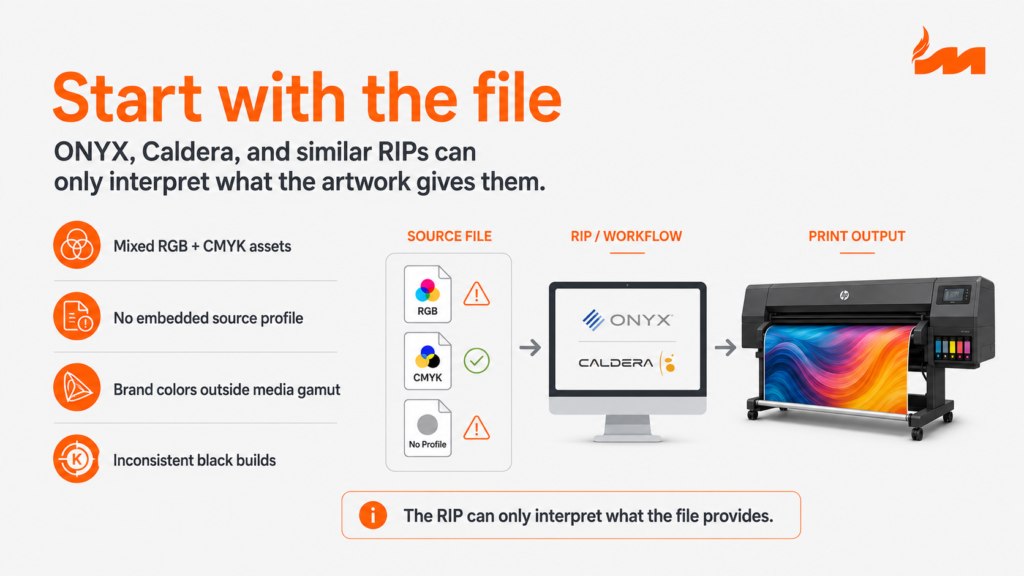
2. Check the Source Profile
A source profile tells the color-management system what the numbers in a file actually mean.
Two files can contain identical RGB or CMYK values yet represent different intended colors when they use different profiles.
ONYX describes input profiles as part of the process used to correct and interpret source-file color before reproduction.
For prepress, this means checking:
Is the source profile embedded?
Is it the profile the designer actually worked in?
Are placed images tagged consistently?
Will the RIP honor, override, or replace that profile?
Sending an untagged file and expecting production to determine the intended appearance introduces another variable into the job.
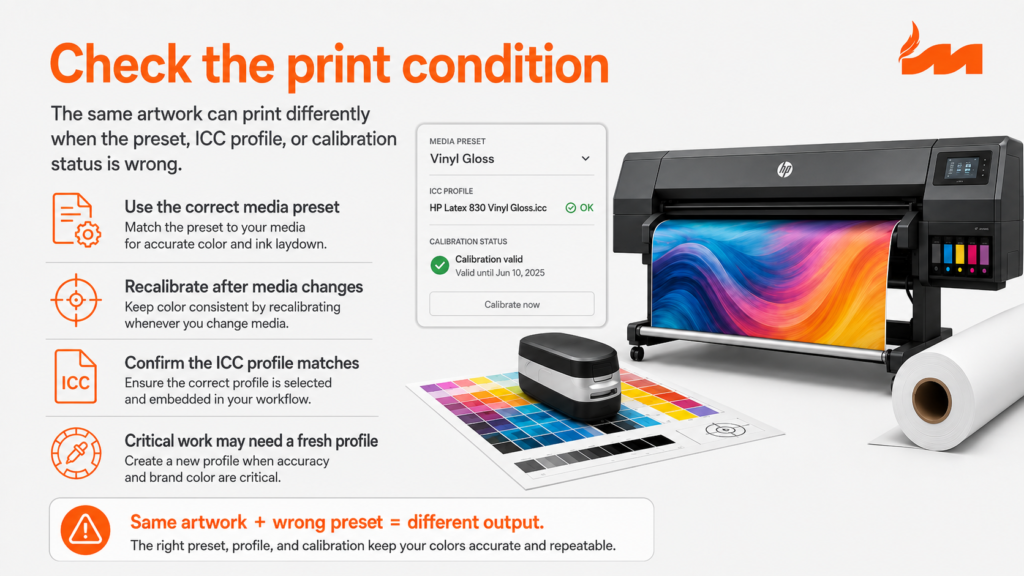
3. Check the HP Latex Media Preset
Once the file side looks correct, move downstream.
The media preset matters because an HP Latex printer does not print every substrate under the same conditions.
HP recommends checking that the appropriate substrate preset is selected and that the corresponding ICC profile and required calibrations are being used.
A preset can control or influence the conditions required for that substrate and print mode.
So this combination:
Correct artwork + wrong media setup
can still produce an incorrect result.
A vinyl job should not be evaluated based purely on what worked yesterday on another material.
4. Confirm the ICC Profile Matches the Print Condition
An ICC profile is not simply a universal “make the color correct” file.
It characterizes a particular output condition.
HP describes an output profile in terms of the printer, substrate and print mode combination used to reproduce color.
That distinction matters.
A profile made for one combination should not automatically be treated as correct for another.
ONYX similarly notes that ICC profiles are tied to the conditions for which they were created rather than being universally interchangeable between printers.
For a color-sensitive job, production should know:
Printer → substrate → print mode → calibration → ICC profile
rather than simply selecting a profile because its name looks close enough.
5. Do Not Ignore Calibration
ICC profiling and calibration solve related but different problems.
A useful way to think about them is:
ICC profiling helps establish how the printing condition reproduces color.
Calibration helps keep that printing condition behaving consistently over time.
HP describes color calibration as a routine used to compensate for changes in printer behavior so that output can return toward an established color condition.
Changes such as printhead condition or changes to the media workflow can therefore require recalibration.
For repeat work, this becomes especially important.
A customer does not care that the file is mathematically identical to the one printed three months ago.
They care whether the new banner matches the old banner.
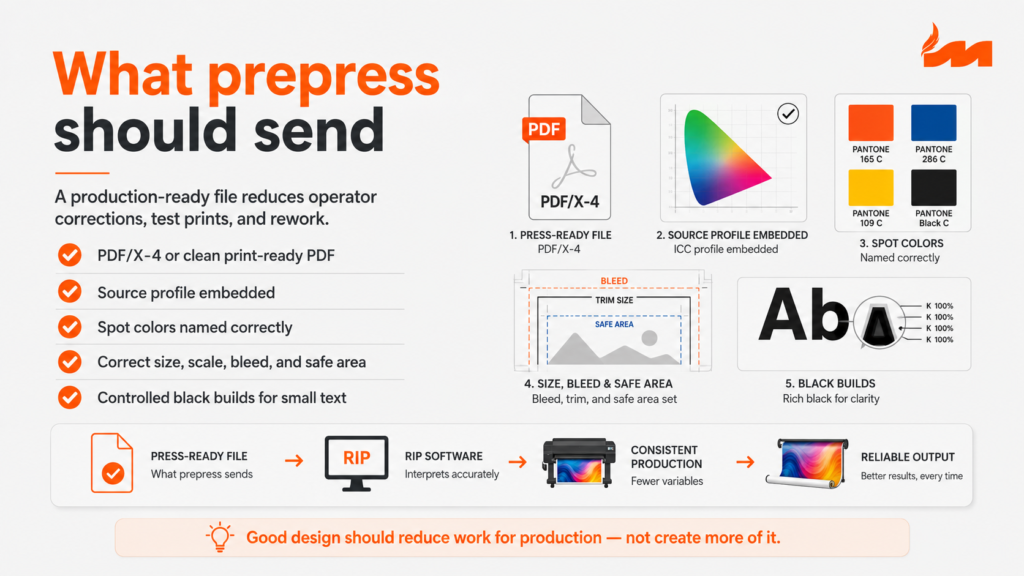
6. What Should Prepress Send to an HP Latex Production Workflow?
The goal of prepress is not to remove every decision from the operator.
The goal is to remove unnecessary decisions.
A clean production file should normally give the RIP and operator predictable information.
For many commercial print workflows, that means checking:
A clean print-ready PDF
A properly prepared PDF should arrive at the correct finished dimensions and preserve the color information required by the production workflow.
PDF/X-4 is commonly useful in modern PDF workflows because it can preserve transparency and color-managed content rather than forcing unnecessary flattening early in the process.
Embedded profiles where appropriate
Do not make production guess what an untagged RGB image was supposed to represent.
Correct spot-color names
A spot color called PANTONE 186 C should not arrive in five different forms such as:
Pantone186PMS186Pantone 186186 RedPANTONE 186 C
when they are all intended to represent the same production color.
Consistent naming makes downstream color handling much cleaner.
Correct size and scale
For wide-format work in particular, confirm:
finished dimensions, scale, bleed, safe area, resolution at final output size and orientation.
The operator should not have to determine whether a 10-foot banner was intentionally supplied at 10%, 25%, or 100% scale.
Controlled black builds
Small black text, large black backgrounds and neutral photographic areas do not necessarily require the same black construction.
Black definitions should be intentional rather than accidental combinations created by conversions between applications.
7. Why Fixing Everything in ONYX or Caldera Is a Bad Workflow
Experienced operators can fix a lot.
That does not mean they should have to.
A production operator may be able to:
- replace a color;
- adjust curves;
- change an input profile;
- alter rendering;
- correct sizing;
- rebuild a contour path;
- modify a spot color;
- compensate for questionable artwork.
But every correction made after the file enters production creates another variable.
And that variable has to be remembered when the job is:
reprinted, transferred to another operator, moved to another printer, or produced at another location.
Good production design aims to make jobs repeatable, not merely printable.
Better Artwork Means Less Operator Correction
The strongest prepress workflow is not the one that makes the most technically complicated PDF.
It is the one that gives production the fewest unnecessary problems to solve.
When artwork is prepared around the actual printing environment, a shop can spend less time:
- troubleshooting unexplained color shifts;
- making RIP-side corrections;
- producing avoidable test prints;
- rebuilding customer artwork;
- finding missing fonts or links;
- correcting spot colors;
- checking scale;
- recreating previous operator adjustments.
That is the standard we use when preparing artwork for commercial printers, signage companies, and print franchises.
Good design should reduce work for production — not create more of it.
HP Latex Color Problems: Quick Troubleshooting Checklist
When an HP Latex job is printing the wrong color, check these in this order:
1. Artwork
Are the source color spaces, profiles, spot colors and black builds intentional?
2. RIP interpretation
How are ONYX, Caldera, or your current RIP interpreting the source profiles and rendering the file?
3. Media preset
Does the selected preset actually match the loaded substrate and print condition?
4. ICC profile
Is the correct output profile being used for that printer/media/mode combination?
5. Calibration
Is the current print condition properly calibrated?
6. Then troubleshoot the printer itself.
This order prevents production from using printer-side adjustments to compensate for a problem that actually originated upstream.
Frequently Asked Questions
Why does my HP Latex printer print different colors than my screen?
A monitor produces color with emitted RGB light, while a printer reproduces color using inks on a physical substrate. The source profile, monitor condition, printer gamut, rendering method, ICC output profile, substrate, and calibration can all influence the final appearance. A color-managed workflow is therefore required rather than expecting screen RGB values to reproduce directly in print.
Does an HP Latex printer need an ICC profile?
ICC profiles are central to accurate color reproduction in HP Latex workflows. The relevant profile needs to represent the printer, substrate, and print condition being used.
Can the wrong media preset change HP Latex color?
Yes. HP specifically recommends using the correct substrate preset, ICC profile, and calibration for the loaded media. A mismatched print condition can therefore change the resulting color even when the artwork itself has not changed.
Should HP Latex artwork be RGB or CMYK?
There is no universal rule that every HP Latex file must be converted to CMYK. Modern RIP workflows can process both RGB and CMYK data. The more important issue is whether the source color space is properly identified and whether conversion into the printer’s output condition is being managed intentionally.
What does an ONYX or Caldera RIP do with an ICC profile?
The RIP uses color-management information to interpret source colors and transform them into output appropriate for the selected printing condition. Both ONYX and Caldera provide ICC-based color-management functionality for this purpose.